Veo 3.1 Prompt Guide — Create Cinematic AI Videos in Seconds
Master cinematic storytelling with precision prompts. From smooth frame-to-video transitions to multi-shot timestamp control, Veo31ai.ai gives you the freedom to create, direct, and share your own short films — no editing required.
Veo 3.1 Overview and the Role of Prompting
Veo 3.1 is the latest AI video generation model developed by Google DeepMind, now fully integrated into Flow. This upgrade represents a major leap in creative control, bringing richer native audio, extended clip duration, and enhanced cinematic realism to AI-generated storytelling. Veo 3.1 improves prompt adherence, character consistency, and scene stability while introducing advanced tools such as Ingredients-to-Video, First & Last Frame, and Extend. These features make it easier to build longer, seamless, and visually coherent sequences with professional-grade quality. While Veo 3.1 introduces powerful new features, a major part of its creative potential comes from how you write your prompts. Well-structured prompts help guide the camera, shape the tone, define lighting, control audio, and maintain narrative clarity. Whether you’re crafting short cinematic scenes, branded marketing content, or social media clips, strong prompting ensures you can take full advantage of what Veo 3.1 offers. This guide will walk you through proven prompt structures and techniques to turn simple ideas into polished cinematic videos.
What’s New in Veo 3.1 — Powerful Features for Next-Gen AI Video Generation
Text-to-Video Generation
Transform written ideas into cinematic storytelling. Veo 3.1 understands narrative prompts, camera language, lighting design, and synchronized audio — turning plain text into high-fidelity video scenes in seconds.
Image-to-Video Animation
Upload a single image and bring it to life with natural movement, depth simulation, and ambient audio. Ideal for concept art, portraits, product visuals, and campaign assets that need cinematic impact.
Ingredients to Video(Reference-to-Video Control)
Guide your scenes with reference images. This feature allows you to preserve character identity, lighting style, and atmosphere, ensuring a consistent visual language across multiple shots — perfect for storytelling, branding, and world-building.
Frames to Video(Cinematic Transitions)
Create seamless transitions between start and end frames to simulate natural camera movement and narrative shifts. Veo 3.1 makes it easy to connect shots into smooth, flowing sequences without complex post-production.
Extend & Edit with Google Flow
Use Veo 3.1’s Extend function to turn short clips into longer, continuous sequences — then refine them with Google Flow. Insert or remove objects, auto-balance lighting, and export in multiple formats, all in one integrated workflow.
Two Model Options: Veo 3.1 & Veo 3.1 Fast
Choose Veo 3.1 for high-fidelity cinematic results or Veo 3.1 Fast for rapid prototyping and quick iteration. This flexible dual-model setup lets you balance quality, speed, and cost for any creative scenario.
Veo 3.1 Prompt Structure — How Veo Understands Your Scene
To get the best results from Veo 3.1, your prompt should do more than describe what’s happening — it should direct the entire scene. Veo 3.1 doesn’t just read words; it interprets cinematic language, camera movement, lighting, and sound to build coherent, realistic storytelling sequences. A clear and effective Veo 3.1 prompt is typically structured like this: [Cinematography / Shot Composition] + [Subject] + [Action] + [Setting] + [Style & Atmosphere] These five components work together to shape both the visual and auditory output, turning a simple description into a well-directed cinematic moment.
Cinematography (Camera & Shot Language)
This defines how the viewer experiences the scene. Veo 3.1 responds very well to clear camera directions and shot composition. Examples: - wide shot, close-up, tracking shot, crane shot, POV shot - slow pan, handheld camera, low angle, aerial view These cinematic cues influence framing, motion, and perspective, making your video feel intentional — not random.
Subject (Who or What Appears)
This tells Veo 3.1 what the main focus of the scene is — such as a person, object, creature, or location. Examples: - “a young woman in a red coat” - “a vintage motorcycle parked on a rainy street” - “a wolf standing on a snowy hilltop” Being specific here helps maintain identity and detail consistency across frames or scenes.
Action (What Happens in the Scene)
This describes the movement or activity. Clear action language improves realism and temporal flow. Examples: - “walks slowly through the forest” - “looks up at the sky as rain falls” - “camera circles around the character as they smile”
Setting (Where and When It Happens)
This sets the environment, atmosphere, and spatial context of your scene. Examples: - “in a foggy forest at dawn” - “inside a neon-lit train station at night” - “on a sunny beach with crashing waves” The more specific the setting, the easier it is for Veo 3.1 to build coherent lighting, perspective, and background elements.
Style & Atmosphere (How It Feels)
This controls the mood, lighting, and overall aesthetic — giving the clip its cinematic character. Examples: - “soft warm lighting”, “backlit with golden sunlight” - “melancholic tone, misty atmosphere” - “dramatic lighting, deep shadows, cinematic grain” Lighting and mood words strongly influence the final look and are essential for storytelling clarity.
Frames to Video Prompt Guide for Veo 3.1: From Keyframes to Cinematic Transitions
Example 1 — Snowfield Entrance Animation(Frames & Prompt)
This example shows how Veo 3.1 can handle group movement and character entrance with cinematic precision. The start frame captures an empty, quiet snowfield — a soft winter background with falling snow. The end frame features a lineup of cute cartoon animals, now fully in frame, as if they have naturally walked into the scene. The prompt directs Veo 3.1 to generate a clean, left-to-right motion path and place each character in its proper position without manual animation. 📝 Prompt: “A group of cute cartoon animals walks into the frame one after another from the left, forming a line on the right side of the screen. Each animal enters in sequence and ends up standing in a snowy winter landscape.”
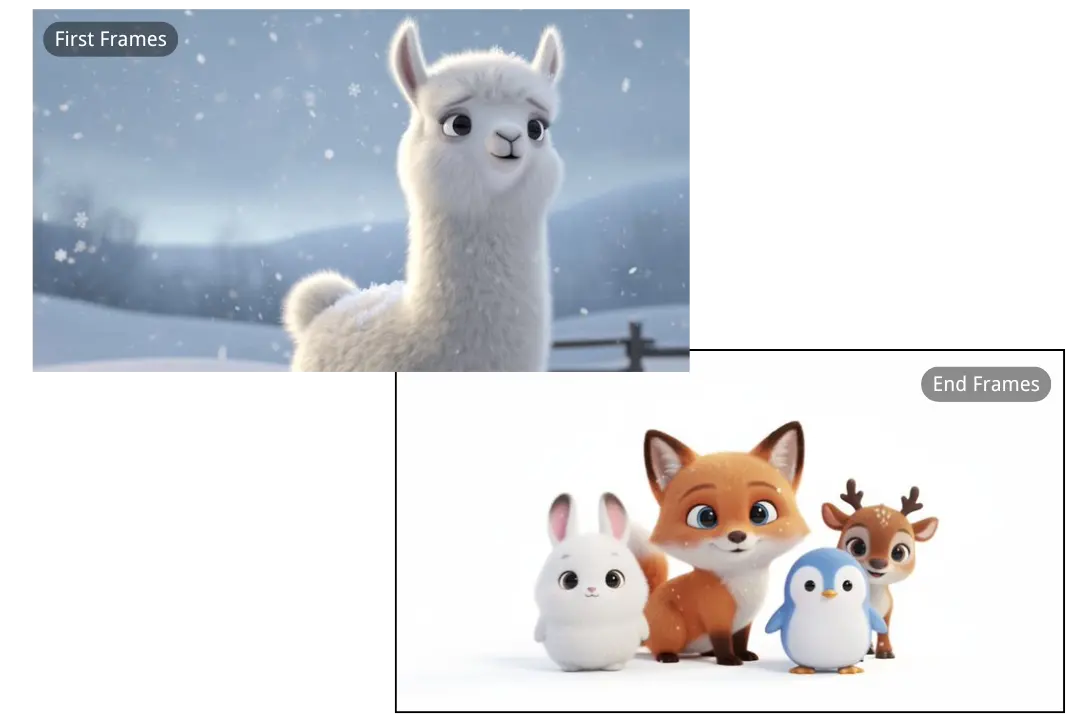
Example 1 —Snowfield Entrance Animation(Resulting Scene)
The resulting video begins with a calm, snowy background. Then, one by one, a fox, a rabbit, a penguin, and a reindeer enter from the left edge of the frame, each walking at a natural pace. Snowflakes drift softly as the camera remains steady. By the end of the shot, all the animals are lined up together on the right, looking cheerful against the white snowfield. The transition feels organic and playful, as if the characters are stepping into a storybook moment.
Example 2 — Stage POV Transition (Frames & Prompt)
This example highlights how Veo 3.1 can create a dynamic camera transition between two distinct points of view. The start frame captures an intimate, emotional moment of a singer performing under a spotlight, while the end frame flips the perspective to reveal the cheering crowd from behind the singer. With only these two keyframes and a simple prompt, Veo 3.1 generates a seamless, cinematic camera arc that feels like a live performance shot. 📝 Prompt: “The camera performs a smooth 180-degree arc, starting with a front-facing shot of the singer under a spotlight and moving behind her to reveal the crowd. The movement should be fluid and cinematic. Ambient audio includes the singer’s voice and the swelling sound of the audience.”
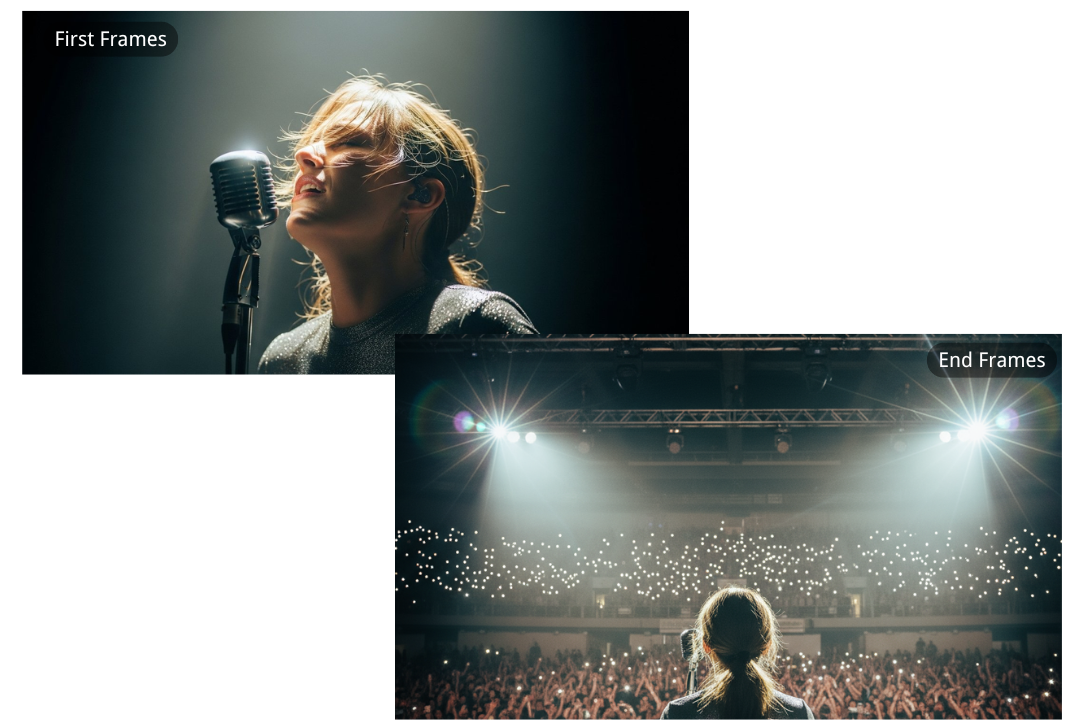
Example 2 — Stage POV Transition (Resulting Scene)
The resulting scene begins with the singer bathed in a warm spotlight, her expression focused and emotional. As the camera moves smoothly around her, the perspective shifts, revealing the stage, dazzling lights, and an ocean of glowing phones in the crowd. The transition feels natural and uninterrupted — like a live broadcast camera sweeping across the stage. The audio grows louder as the view expands, perfectly matching the momentum of the visual transition.
Ingredients to Video Prompt Guide for Veo 3.1
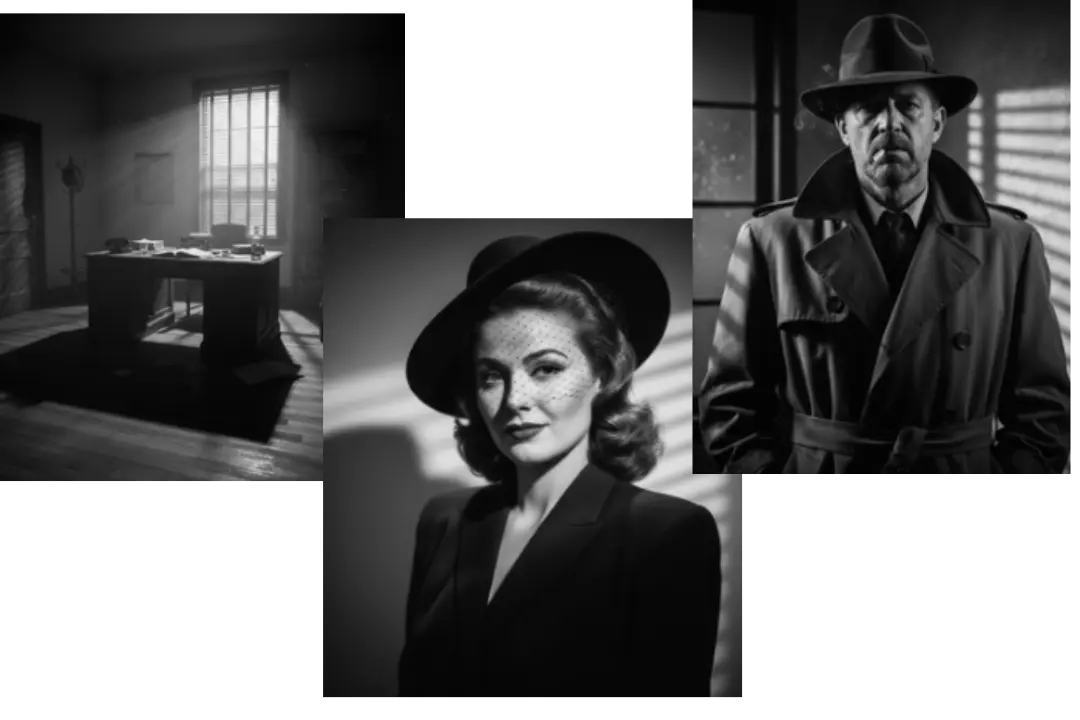
Reference Images — Building the Scene Ingredients
Ingredients-to-Video allows creators to use reference images as the foundation for their video generation. By uploading character portraits, props, or environmental shots, Veo 3.1 can synthesize these “ingredients” into cohesive cinematic scenes. In this example, the reference set includes a noir detective, a mysterious woman, and an office environment — setting the stage for a classic film-noir interaction.
Basic Ingredients-to-Video Prompt
This is a simple prompt structure to compose a single-shot scene using your reference assets. The key is to describe the framing, the action, and the dialogue or mood, while relying on the provided images to anchor visual consistency. 📝 Prompt Example: “Using the provided images for the detective, the woman, and the office setting, create a medium shot of the detective behind his desk. He looks up at the woman and says in a weary voice, "Of all the offices in this town, you had to walk into mine”
Timestamp Prompting — Multi-Shot Ingredients Scene
For more complex compositions, you can add timestamp-based directives to orchestrate camera movement, character performance, and dialogue beats — all in a single generation. This lets you create cinematic sequences without editing multiple clips together. 📝 Prompt Example: [00:00–00:02] Medium shot. The camera slowly pushes in toward the detective sitting behind his desk in a dimly lit noir office. Horizontal blinds cast dramatic shadows across the room. He sits with his hands folded, looking down, cigarette smoke curling upward. [00:02–00:04] Slow pan to the right as the woman steps into the frame from the shadows near the door. She walks toward the desk gracefully, wearing a classic noir hat and tailored coat. Footsteps echo softly on the wooden floor. [00:04–00:06] Close-up on the detective’s face. He raises his eyes and looks at her with a weary, sharp expression. The smoke drifts through the light beams as ambient jazz music plays softly. [00:06–00:08] Wide shot. The camera pulls back slightly to frame both characters in the same scene. The woman stops beside the desk, tilting her head with a faint smirk.Light from the blinds intensifies slightly, enhancing the mood.
How to Use Prompts to Create Free Veo 3.1 Videos on Veo31ai.ai
Step 1: Start on Veo31ai.ai
First, go to Veo31ai.ai and start setting up your scene. You can upload reference images or begin with a text idea to define the look and feel of your video. We support Frames-to-Video for smooth transitions and Ingredients-to-Video to combine characters, props, and environments — giving you creative control from the very first step.
Step 2: Write a Strong Prompt
Your prompt is the foundation of your Veo 3.1 video. By clearly describing the camera angle, character actions, lighting style, and overall mood, you give the model everything it needs to build a cinematic sequence. For more control, you can use timestamp prompting to split your 8-second video into multiple shots, allowing you to direct each beat like a storyboard. The clearer the structure, the more polished the result.
Step 3: Generate, Download, and Share
Once your prompt is ready, simply click “Generate” to bring it to life. In just a few seconds, your Veo 3.1 video will be ready to preview. From there, you can download it in HD or share it directly across social platforms. No editing tools required — we make it fast, simple, and completely free to create cinematic content.